Understanding the Web Content Accessibility Guidelines (WCAG)
The Web Content Accessibility Guidelines, usually shortened to WCAG, are the international standard for making websites usable by people with disabilities. That includes people who are blind or have low vision, people who are deaf or hard of hearing, people who cannot use a mouse, and people with cognitive or learning differences.
Think of WCAG as a building code for websites. A ramp next to the stairs and a lift with braille buttons do not get in anyone’s way — they let more people through the door. An accessible website works the same way.
This guide explains what WCAG asks for in plain terms, and shows where you can act on it in the builder.
The website builder supports accessibility best practices in line with WCAG 2.1. These guidelines make sure websites are perceivable, operable, understandable and robust (POUR) for all users, including people with disabilities.
The builder gives you tools to design accessible websites. It includes several built-in accessibility features, but full compliance depends on how you apply these principles when you design your pages and write your content.
Web content accessibility principles in the builder
| Principle | What the builder provides |
|---|---|
| Perceivable | Text alternatives — you can add alt text to every image. Adaptable layouts — responsive design adjusts content to different screen sizes. Distinguishable content — you can set colors and fonts to keep high contrast between text and background. |
| Operable | Keyboard navigation — published sites can be navigated with the keyboard. Focus indicators — interactive elements keep a visible focus outline. Time-based media — video embeds support captions and transcripts, when the hosting platform provides them. |
| Understandable | Consistent navigation — global headers and footers keep the site structure predictable. Form labels and instructions — form fields support labels and error messages. Readable content — content is structured with semantic headings (H1–H6). |
| Robust | Semantic HTML — the builder outputs clean, standards-compliant HTML. ARIA attributes — support for ARIA roles improves compatibility with assistive technology. Cross-platform support — websites work with modern browsers and screen readers. |
Use these accessibility features
The builder includes the following features to help you make your website accessible to all users, including people with disabilities.
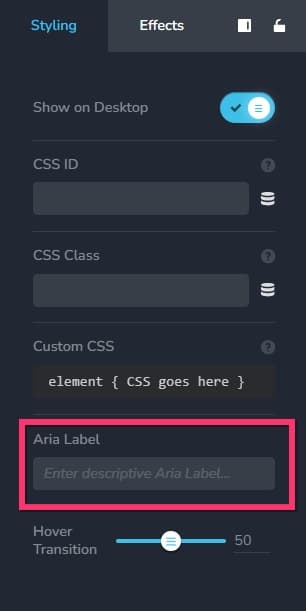
ARIA labels for icons
An ARIA label gives a clear, descriptive name to an interactive element that has no visible text, such as an icon. Screen readers read this name aloud.
In the Icon element, click the Settings icon and add an Aria Label in the side panel.
Alt titles for images
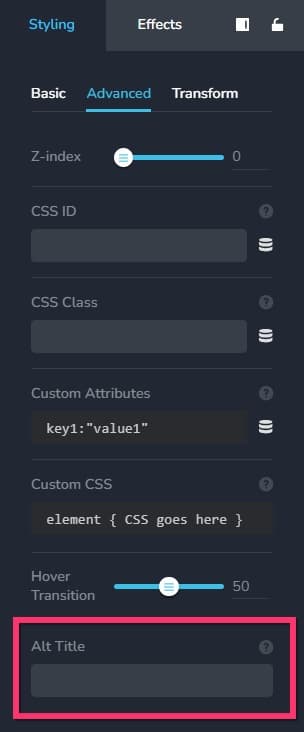
An Alt Title gives an image a text description. It helps people who use screen readers and other assistive devices understand what the image shows and why it is there.
In the Image element, add an Alt Title in the styling panel under the Advanced tab.
Titles for custom audio
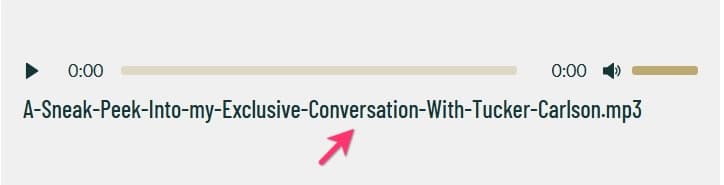
A descriptive title tells screen reader users what an audio file contains and what it is for.
When you upload a custom audio file in the Audio element:
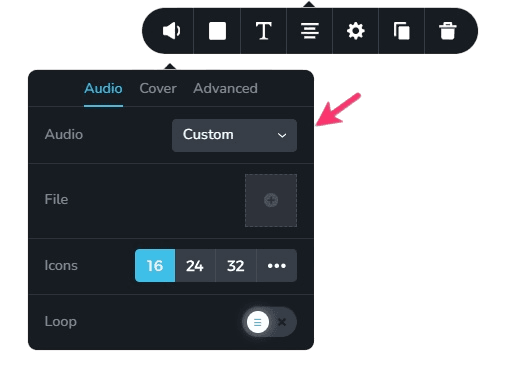
enable the Title option under the Advanced tab and give the audio file a meaningful name.
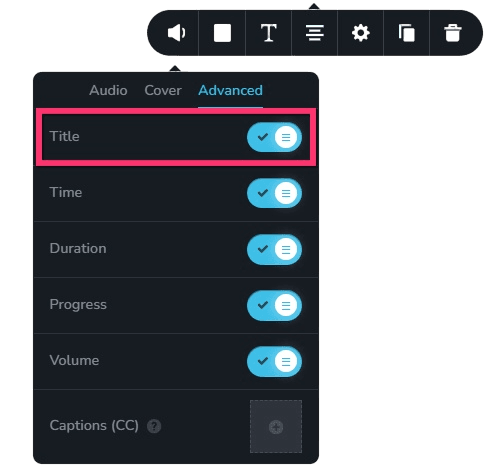
The audio file name is displayed as its title.
Captions for custom audio
Captions give people who are hard of hearing a text version of the spoken words and important sounds. They also help people learning the language, people in noisy or silent places, and anyone who prefers to read along.
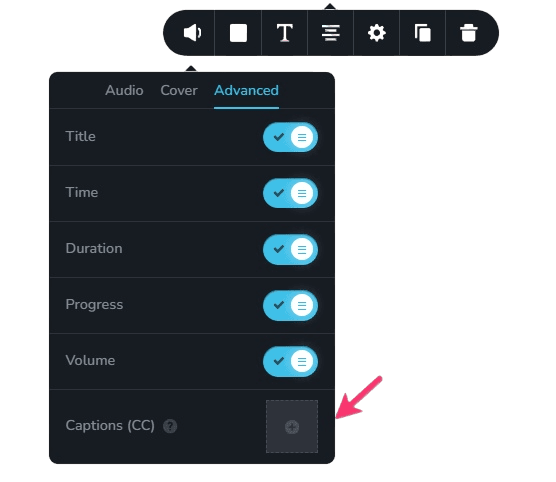
Along with a custom audio file, you can upload a WebVTT file — a text file with a .vtt
extension. It holds the transcript of the audio together with timecodes that say when each
piece of text should appear and disappear. You can generate one with an online tool such as
Happy Scribe’s subtitle generator .
When you upload a custom audio file, upload its WebVTT file under the Advanced tab.
Captions for custom videos
Captions let people who are hard of hearing follow spoken content. They also help people in noisy places, non-native speakers, and anyone watching with the sound off.
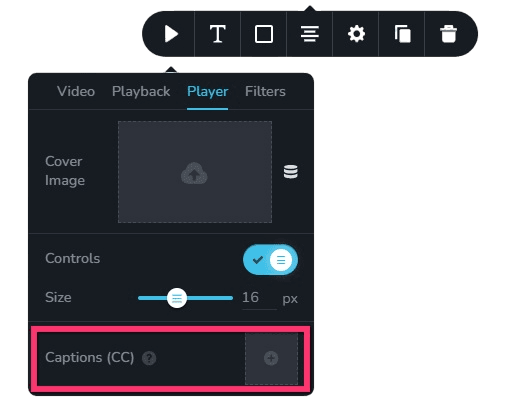
Along with a custom video, you can upload a WebVTT (.vtt) file with synchronized captions and
subtitles. You can generate one with an online tool such as
Happy Scribe . For more guidance, see
how to create a WebVTT file for your videos .
In the Video element, upload the WebVTT file under the Player tab.
Pause and play for carousels
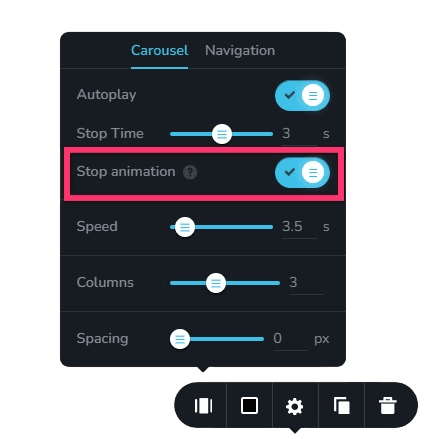
Screen reader users may not know a carousel is moving, and fast auto-play can make content hard to read. A pause button gives visitors the time they need. It looks like this:
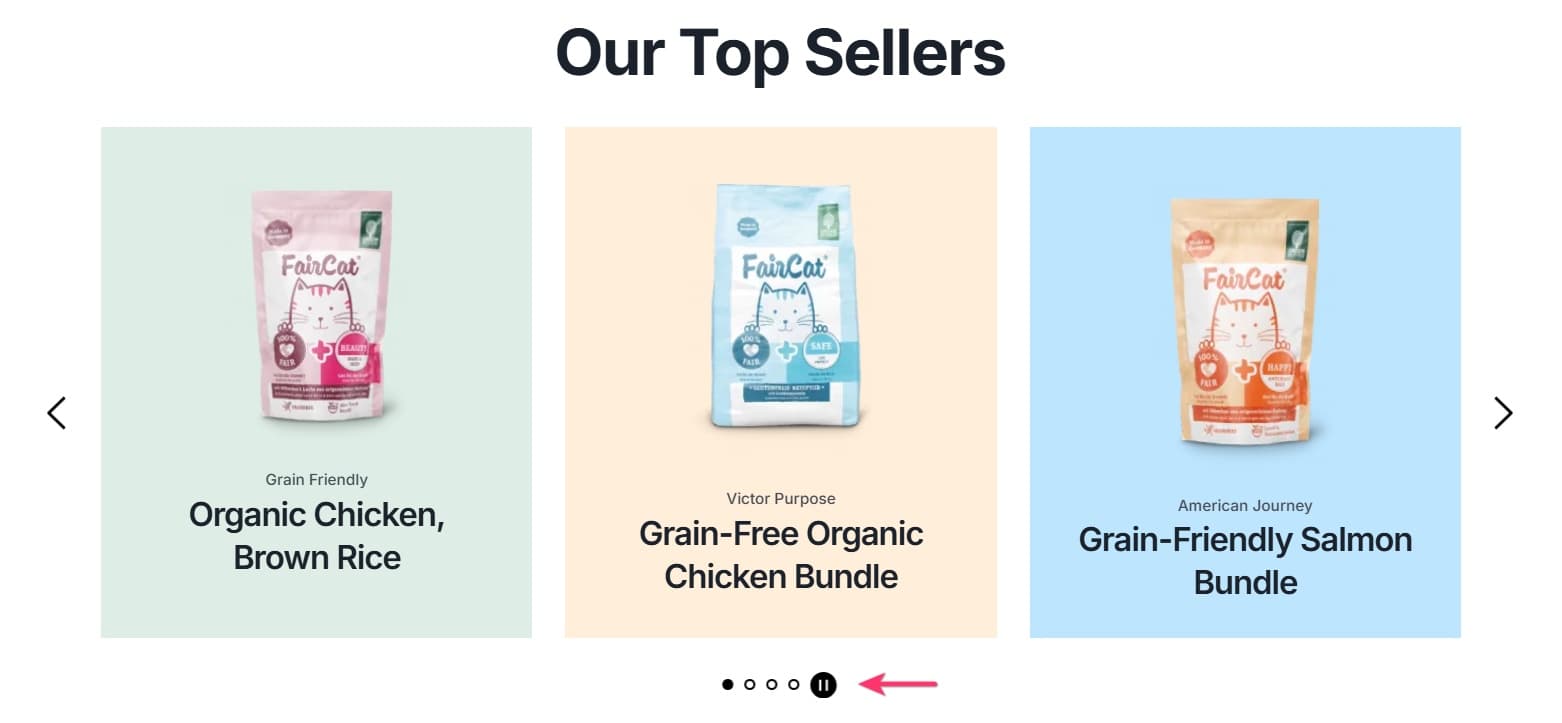
To add it to an auto-playing carousel, turn on the Stop Animation toggle.
Detailed error messages on forms
Visitors with low vision or color blindness may miss errors shown only by color or an icon. Forms built with the builder show detailed error messages instead — for example, the required format for an email address.


Zoom in image lightbox
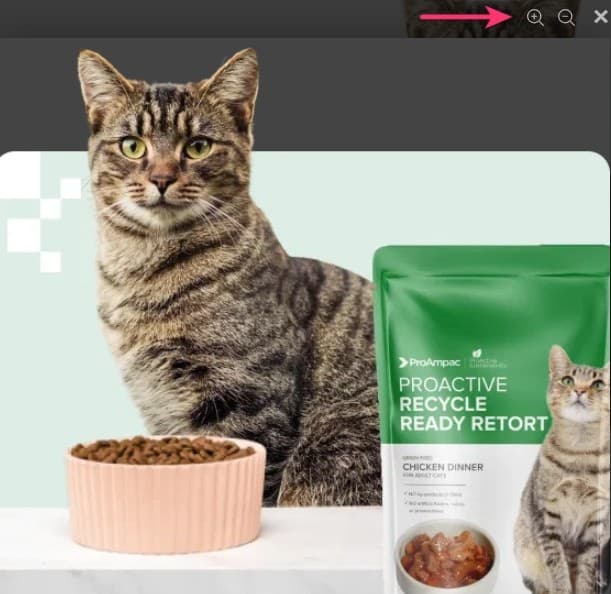
The zoom feature helps visitors with low vision enlarge an image and see it more closely.
When you enable the Lightbox for an image, + and – icons appear. Visitors click them to zoom in and out.
Focus indicators
A focus indicator shows visitors who move around the page with the Tab key which element is currently selected, or “in focus”. In the builder, a violet outline marks the element in focus.

Design guidelines for web accessibility
The W3C’s Web Accessibility Initiative publishes design tips for accessibility . As the person designing the website, you are responsible for making both the design and the content accessible. That means preparing your text, graphics, photos and site structure, and using the accessibility features in the builder.
- Add meaningful alt titles to all images.
- Use headings in a logical order (H1, then H2, then H3).
- Make sure there is enough color contrast between text and background.
- Do not use color alone to convey meaning.
- Give every form field a clear label.
- Use headings and spacing to group related content.
- Use descriptive link text — for example, “View pricing plans” instead of “Click here”.
- Test every page using only the keyboard.
- Provide captions or transcripts for audio and video content.
- Keep navigation clear and consistent.
- Make interactive elements easy to identify.
Built-in accessibility widget
Besides the accessibility features built into the builder and the websites it creates, there is an optional Accessibility widget you can turn on or off.
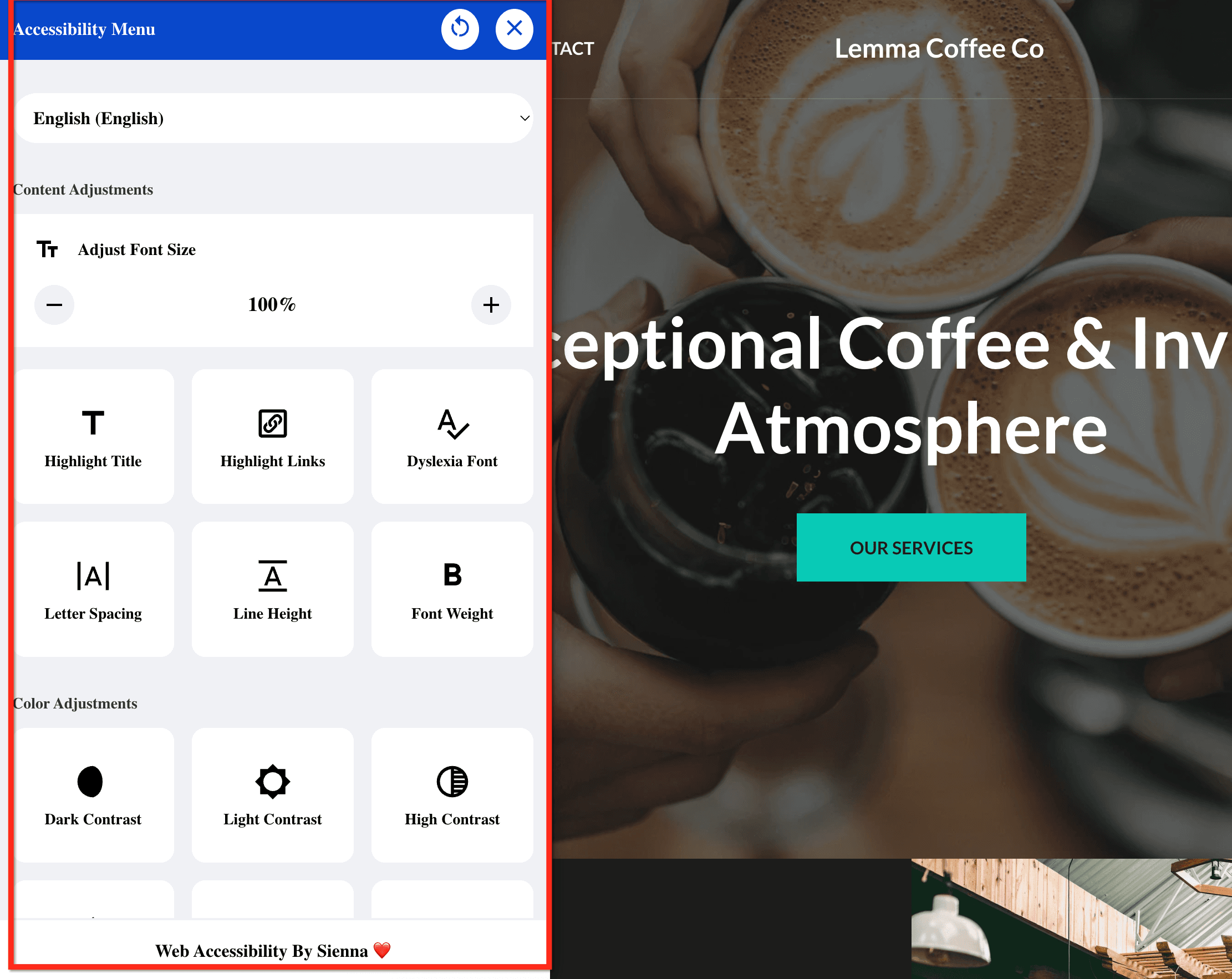
The widget appears on your published website. It gives visitors with disabilities tools to adjust their browsing experience as they go — such as changing color contrast, turning on a reading focus, and enlarging text.
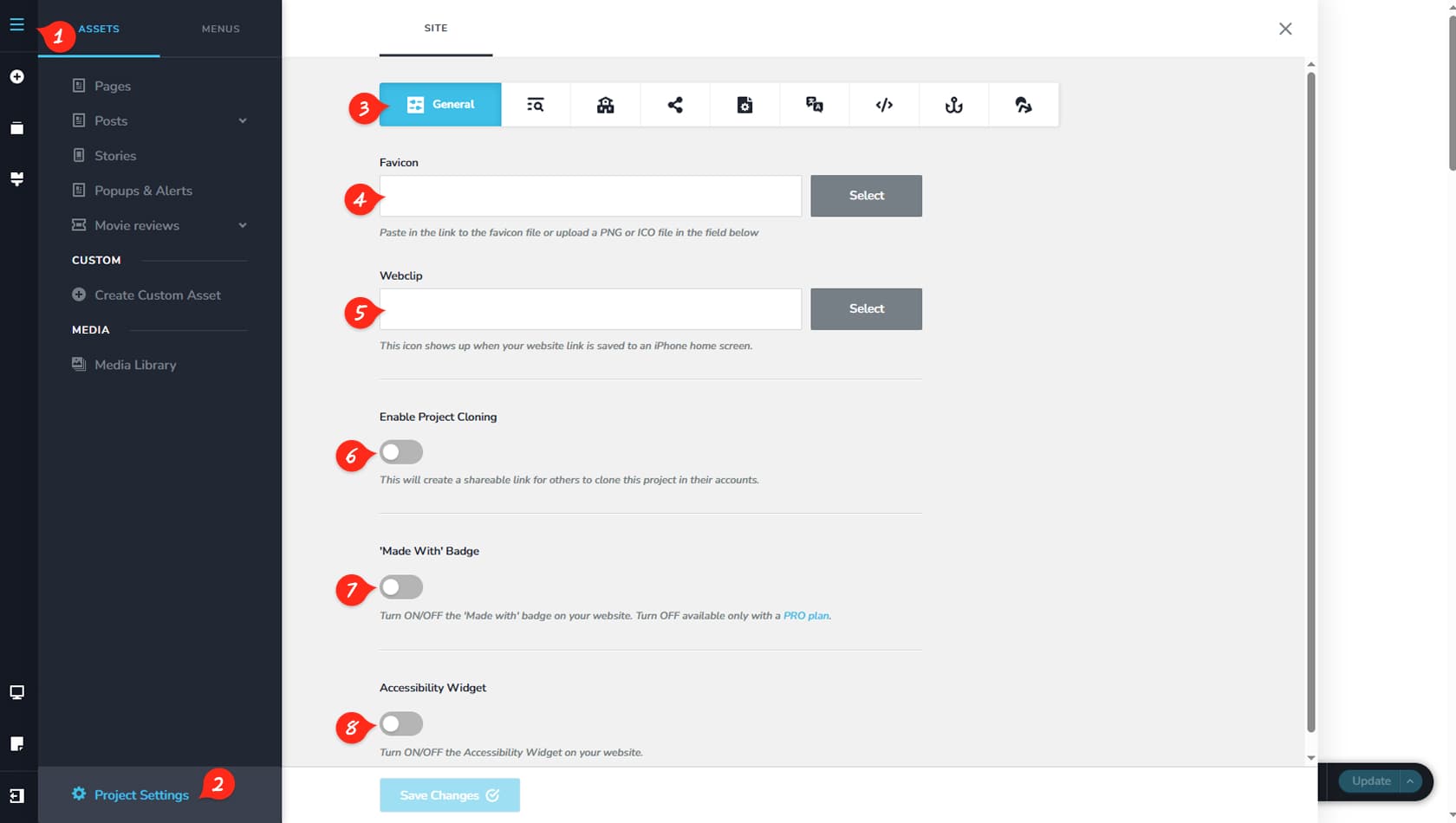
The widget is off by default. Turn it on in the General tab of your project settings. See General settings.
This is how it looks on the website:

Keep this in mind
The builder follows the WCAG 2.1 AA guidelines, but keep the following in mind:
- Custom ARIA roles cannot be fully set in the editor. You do not need an ARIA label when an element already has clear, visible text — browsers take the accessible name from the element’s content.
- Content from third-party embeds — such as YouTube videos, iframes or custom code — may not meet accessibility requirements. This is outside the builder’s control.
- Site owners are responsible for making sure their written content, media and custom code follow WCAG.
Our commitment
We are committed to improving accessibility and keeping in line with the WCAG 2.1 AA standard. We regularly review our features to make them more inclusive and provide resources to help you build accessible websites. For questions, suggestions or to report an accessibility issue, contact our support team.